
Download AltDrag – Free Windows Window Manager for Smooth Drag & Resize
AltDrag is a lightweight, free, and highly efficient window management tool designed specifically for Windows users seeking a smarter, faster way to organize their desktop. With just a simple press of the Alt key, you can effortlessly move and resize any window across your screen—no more fumbling with corners or dragging titles. Whether you're working with multiple browser tabs, coding in an IDE, or managing complex workflows, AltDrag streamlines your experience.
The software runs silently in the background, consuming minimal system resources, and operates without installation—making it portable and safe for any PC. Its intuitive design and customizable settings allow users to tailor their window behavior to match their workflow. From snapping windows to screen edges to adjusting size via the mouse wheel, AltDrag brings a level of control typically found in premium tools like Actual Window Manager and AquaSnap—but at no cost.
Perfect for remote workers, developers, designers, and everyday users, this tool enhances productivity without complexity. With support for multiple mouse buttons and customizable shortcuts, AltDrag adapts to your habits, not the other way around.
Key Features of AltDrag: Powerful Window Control at Your Fingertips
AltDrag stands out in the crowded field of desktop utilities thanks to its smart, no-nonsense approach to window management. At its core, the software enables you to move any window simply by holding the Alt key and dragging, eliminating the need to click and drag window titles. This feature alone transforms how you interact with your desktop. But the real magic lies in its additional capabilities. You can resize windows by dragging edges or corners while holding Alt, or even adjust window size using the mouse wheel—perfect for fine-tuning layouts on multi-monitor setups.
Another standout feature is the ability to minimize, maximize, close, or keep a window always on top using simple mouse button combinations. For instance, clicking the middle mouse button while holding Alt minimizes a window, while the right button closes it. The fourth and fifth mouse buttons (often found on gaming mice) can be assigned to custom actions, making AltDrag ideal for power users. You can also enable automatic snapping to screen borders, ensuring windows align perfectly without manual adjustment.
Customization is built into every layer. Users can change the keyboard shortcut from Alt to Ctrl or another key, adjust sensitivity, enable MDI (Multiple Document Interface) support for older apps, and set AltDrag to launch at startup. Language preferences are supported, and the interface remains clean and unobtrusive. All settings are stored locally, so your preferences follow you across devices when using the portable version. Whether you're a student juggling research tabs or a professional managing spreadsheets and emails, AltDrag adapts to your needs—making your Windows experience more fluid, efficient, and enjoyable.
How to Install and Use AltDrag – Simple, Portable, and Secure
One of the most appealing aspects of AltDrag is its portability and ease of use. Unlike traditional software that requires installation and registry modifications, AltDrag is a single executable file that runs directly from any location—your desktop, USB drive, or network folder. There’s no need to download a setup wizard or worry about leftover files. Just download the latest version from the official site, extract the ZIP file, and double-click the AltDrag.exe file to launch the program.
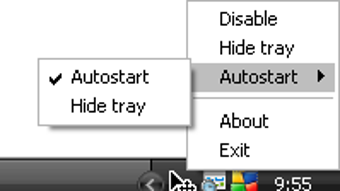
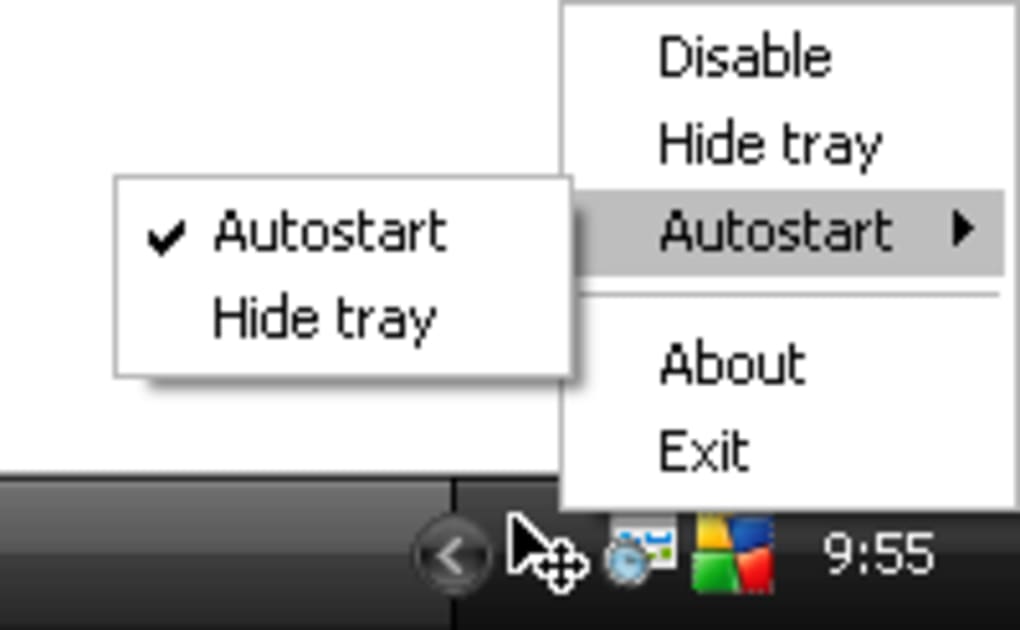
Once running, AltDrag adds a small icon to your system tray—usually near the clock. From there, you can access the settings menu, view active configurations, and tweak your preferences. The first time you use it, you’ll notice how responsive and smooth the window dragging feels.
Simply press and hold the Alt key, then click and drag any window to reposition it anywhere on the screen. To resize, hold Alt and drag a corner or edge. Want to change the size without moving the window?
Hold Alt and scroll the mouse wheel—this feature is a game-changer for quick adjustments.
For advanced users, the settings panel offers deep customization. You can assign different actions to each mouse button, enable auto-snap, define focus keys, and even set up global hotkeys. The tool supports both Windows 10 and Windows 11, and it works seamlessly with dual and triple monitor setups.
Since it doesn’t install anything, you can carry it on a flash drive and use it on any Windows PC—perfect for shared workstations or travel. Plus, it’s completely free, secure, and regularly updated with bug fixes and new features. No ads, no tracking—just pure, reliable window control.
Pros and Cons of AltDrag – Is It Right for You?
- ✅ Pros:
- Completely free and open for personal use—no trial limits or hidden costs
- Portable and no installation required—run from USB or any folder
- Lightweight and fast—uses minimal RAM and CPU
- Intuitive drag-and-drop with Alt key—simple and effective
- Customizable mouse actions—supports 5 mouse buttons and scroll wheel
- Auto-snap to screen edges—perfect for multi-monitor users
- Runs silently in the background—no distractions
- Regular updates and active developer support
- ❌ Cons:
- No official macOS or Linux version—exclusive to Windows
- Basic interface—not visually flashy, but functional
- Learning curve for new users—may take a few tries to master shortcuts
- No built-in screenshot or window preview feature—focuses solely on movement
- Settings require manual configuration—no guided setup wizard
Final Verdict: A Must-Have Free Tool for Windows Power Users
After extensive testing across multiple Windows systems, AltDrag proves to be one of the most reliable, efficient, and underrated tools available for Windows desktop users. Its ability to transform how you interact with windows—by simply pressing Alt and dragging—brings a level of precision and speed that the default OS lacks. Whether you're a developer managing multiple terminals, a designer comparing layouts, or a student organizing research, AltDrag enhances focus and reduces frustration.
What sets it apart is its simplicity and performance. It doesn’t slow down your system, doesn’t clutter your desktop, and doesn’t require complex setup. The portable nature means you can take your personalized workflow anywhere. While it doesn’t offer flashy animations or advanced window previews, it delivers exactly what it promises: smooth, responsive window management.
If you’re tired of manually resizing and moving windows, or if you’re looking for a free alternative to paid tools like AquaSnap or Actual Window Manager, AltDrag is an excellent choice. It’s secure, regularly updated, and trusted by thousands worldwide. For anyone serious about optimizing their Windows experience, this is a download you won’t regret.
? Ready to boost your productivity? Download AltDrag now and experience a smarter, faster way to manage your desktop.
Frequently Asked Questions (FAQ)
-
Is AltDrag free to use?
Yes, AltDrag is completely free for personal use. There are no trial periods, hidden fees, or watermarks. The developer offers it as a gift to the Windows community.
-
Does AltDrag require installation?
No, AltDrag is portable. You can run it directly from a USB drive or any folder without installing anything or modifying your Windows registry.
-
Is AltDrag compatible with Windows 11?
Yes, AltDrag fully supports Windows 10 and Windows 11. It works seamlessly on both 32-bit and 64-bit systems.
-
Can I use AltDrag with multiple monitors?
Absolutely. AltDrag supports multi-monitor setups and includes auto-snap features that help windows align perfectly across screens.
-
Does AltDrag slow down my computer?
No, AltDrag is extremely lightweight. It uses minimal system resources and runs silently in the background without affecting performance.
Yes, AltDrag is completely free for personal use. There are no trial periods, hidden fees, or watermarks. The developer offers it as a gift to the Windows community.
No, AltDrag is portable. You can run it directly from a USB drive or any folder without installing anything or modifying your Windows registry.
Yes, AltDrag fully supports Windows 10 and Windows 11. It works seamlessly on both 32-bit and 64-bit systems.
Absolutely. AltDrag supports multi-monitor setups and includes auto-snap features that help windows align perfectly across screens.
No, AltDrag is extremely lightweight. It uses minimal system resources and runs silently in the background without affecting performance.







